In Windows 7, when you drag-and-drop
Recycle Bin to the taskbar, it get's pinned to
Windows Explorer on the taskbar. If you need to add the
Recycle Bin icon to the taskbar then make sure that the
Recycle Bin icon is on the desktop and then perform the following:
1. Right-click on an empty space on the desktop, point to
New and click on
Folder.
2. Rename the New Folder to
My Toolbar.
3. Drag-and-drop the
Recycle Bin icon to the
My Toolbar folder.
4. In the taskbar, right-click on an empty space, click to clear the check mark beside
Lock the taskbar. Right-click on an empty space on the taskbar and point to
Toolbars and click
New toolbar...5. From the
New Toolbar - Choose a folder dialog box that opens, locate the
My Toolbar folder from the desktop. Click to highlight the
My Toolbar folder and then click on the
Select Folder button.
6. My Toolbar folder appears on the taskbar. Now, you have to hide the labels and make the
Recycle Bin icon large. To do this,
- Right-click on My Toolbar and click to clear the check mark beside Show Text and Show title.
- Right-click on My Toolbar, point to View, click Large Icons.
7. Now, the
Recycle Bin icon would appear to the right of the taskbar. To make the
Recycle Bin icon appear to the left, click on the dotted lines that appears to the left of the
Recycle Bin icon and drag to the right of the
Start button.
8. Right-click on an empty space on the taskbar and click to place a check mark beside
Lock the taskbar.
 and then click Control Panel.
 5. From the Text Services and Input Languages dialog box, click the Language Bar tab. In the Language Bar section, click Docked in the taskbar.
 6. Click OK to close the Text Services and Input Languages dialog box.
 4. From the Turn system icons on or off window, do one of the following:
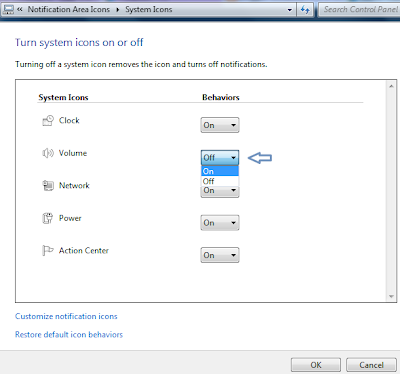 5. Click OK again to close Select which icons and notifications appear on the taskbar window.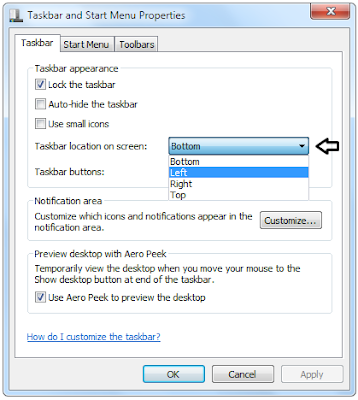
 1. Right-click on an empty space on the taskbar and click on Properties.
 to view the taskbar.
 cursor. Now, left-click on the mouse and drag to resize the taskbar.